
Random name selection is one of the simplest and most effective strategies a teacher can use to increase participation, build accountability, and create a fair classroom culture where every student stays engaged. This free Classroom Random Name Picker makes that strategy easy to run right from your browser — on a Smart Board, laptop, iPad, or phone — with no app to download and no account to create.
Your privacy matters: names are stored only on your own device using your browser’s local storage. Nothing is sent to any server. No student data is collected by this site.
Why Random Name Selection Works
When students know anyone in the room might be called at any moment, they stay mentally present throughout the lesson. Voluntary hand-raising tends to favor the same confident students every time, leaving the rest of the class off the hook. Random selection distributes participation fairly — every student has an equal chance regardless of confidence, processing speed, or personality.
Used consistently and warmly, random selection also reduces the social pressure of volunteering. It becomes a shared classroom norm rather than something to dread.
How to Use the Name Picker
Step 1 — Load your class list. Paste student names into the text box, one name per line. Click Load Names. The tool counts your students and displays them as chips below the picker.
Step 2 — Spin. Click Spin to Pick. Names cycle rapidly and slow to a stop, landing on one student with an animated highlight. Show it on your Smart Board so the whole class sees the result together.
Step 3 — Adjust as needed. Use the three options to customize behavior for your activity:
- No Repeats — every student is called before anyone repeats. The tool tracks who has been picked and shows used names as strikethroughs in the list.
- Remove After Picking — the selected name is automatically removed from the pool. Useful for activities where each student participates once and is done.
- Remember Names — saves your list to your device so it is ready next time you open the page. Nothing leaves your browser.
Tip: Always give students 30 to 60 seconds of thinking time before spinning. Students who have had time to prepare a thought respond more confidently, and the rest of the class listens more critically to the answer.
Where to Use It in Your Classroom
Question and answer during a lesson — instead of calling on raised hands, spin after every question. Students stay alert because any of them might be next.
Review sessions before a test — use No Repeats mode to work through the whole class systematically. Everyone gets a turn, and you cover more ground.
Reading and discussion circles — spin to decide who reads the next passage or shares their annotation. This keeps discussion moving and prevents the same voices from dominating.
Group work check-ins — spin to pick which group presents first or reports out to the class. Removes the awkward pause of waiting for volunteers.
Exit ticket alternatives — instead of a written exit ticket, spin to pick two or three students who share one thing they learned. Hearing it aloud from a peer reinforces the learning for the whole class.
Morning meeting and community circle — especially useful in elementary settings where you want every student to feel seen during community time.
Substitute plans — load your class list, leave the tab open on the classroom computer, and include a note in your sub plans. No explanation needed beyond "click the spin button."
Theme Options
The picker includes three themes that match the Rich in Education color palette:
- Default (purple) — matches the site's standard tool design, clean and professional
- Light (green) — calm and easy on the eyes, great for focused low-energy activities
- Fun (amber) — bright and warm, excellent for high-energy review games or elementary classrooms
Switch themes with a single click at the top right of the tool.
More Free Classroom Tools
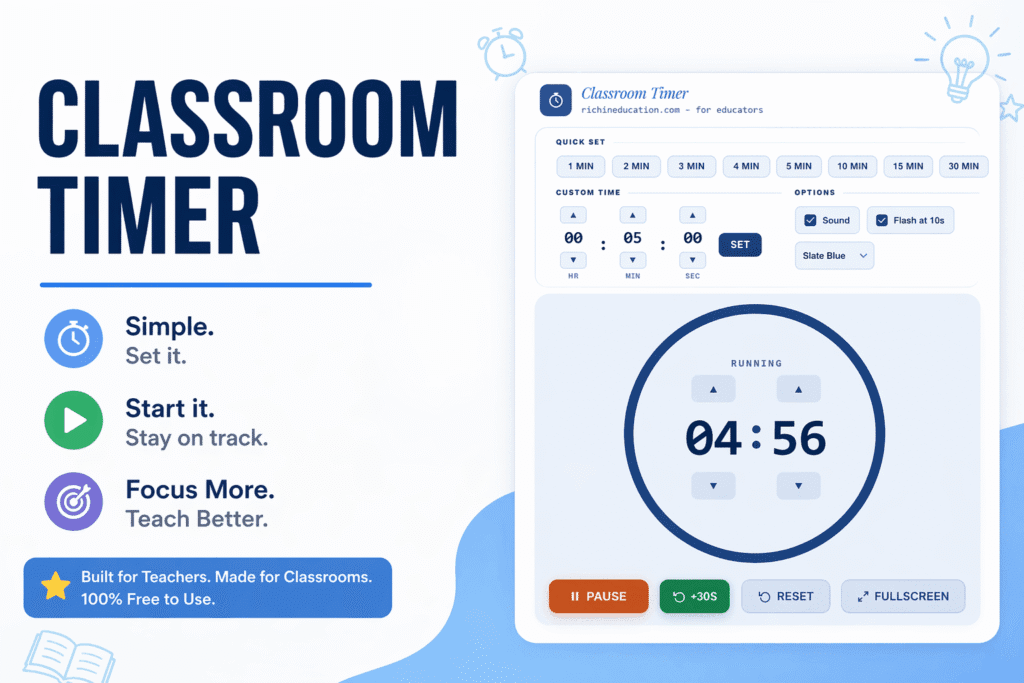
- Classroom Timer — countdown timer with sound, fullscreen mode, and multiple themes for Smart Boards
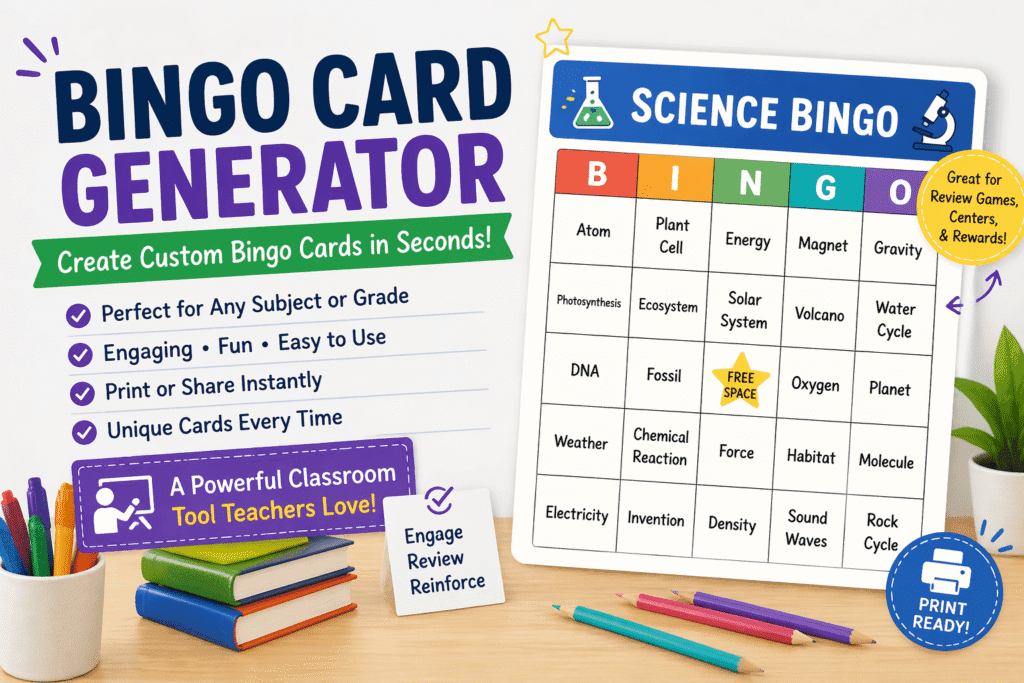
- Bingo Card Generator — unique bingo cards for your whole class with a built-in caller sheet
- Word Search Generator — custom word search puzzles built from your own vocabulary list
- One-Step Equations Worksheet Generator — fully customizable printable algebra practice
- Two-Step Equations Worksheet Generator — same format, more challenge
All tools are free, require no account, and are built for real classroom use.

1 Comment
Pingback: Award Certificate Maker for Teachers | Student of the Month, Math Star and More – Rich in Education