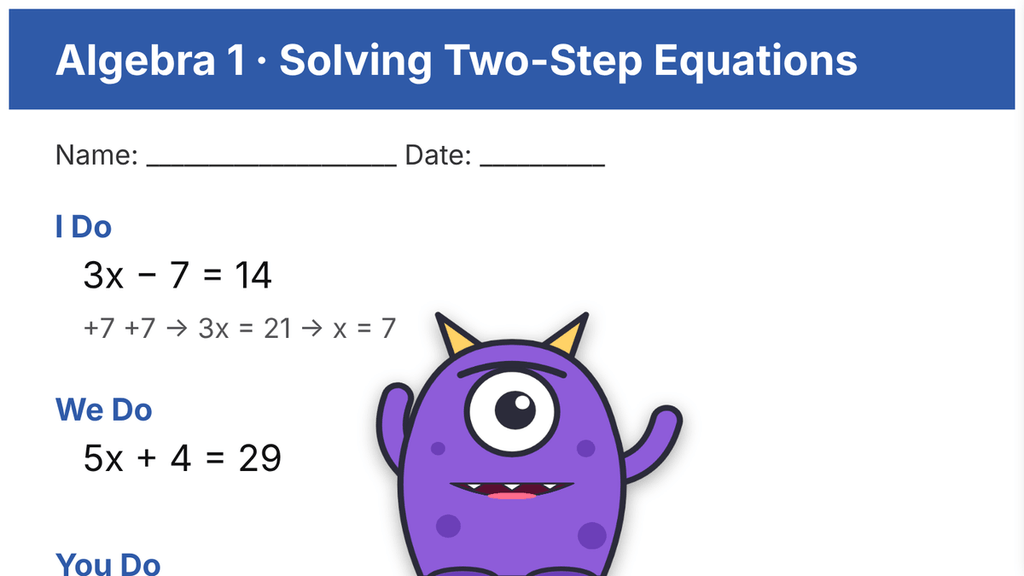
You are explaining a two-step equation. You turn to face the class, press your clicker, and a giant purple monster jumps up on the board behind you. The room explodes. You press the clicker again, the monster vanishes, and you carry on teaching as if nothing happened.
That is exactly what this free Halloween smart board prank does. It is a small tool I built for my own Algebra classroom, and today I am sharing it with every teacher who wants a few minutes of Halloween fun without losing the lesson.
What is the Halloween Smart Board Prank?
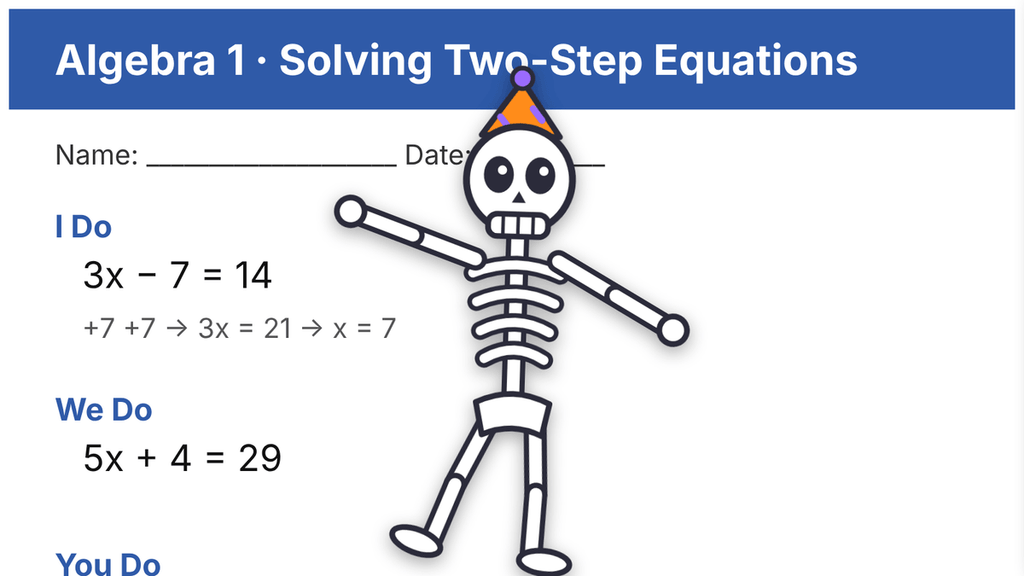
It is a single file you open in Chrome or Edge. You load your lesson PDF (a worksheet, notes or slides saved as PDF), and it displays on your interactive whiteboard as usual. With one press of a key or your presentation clicker, a cartoon Halloween character pops up on top of the lesson. Press again and it disappears instantly.
- Free, with no sign-up and no ads inside the tool
- Works offline, so a weak school Wi-Fi connection can’t ruin the surprise
- Any PDF or image becomes your lesson background
- One-click toggle with Space, Enter or your wireless clicker
- Classroom-safe: silly and friendly, never gory or truly scary
- Sound is off by default, with optional cartoon sound effects you can turn on
20 Halloween pranks for your classroom
Every prank is an original cartoon animation. Pick one yourself, or let Surprise mode choose a random prank each time.
- Giant Monster Pop-Up: a one-eyed purple monster jumps up from the bottom of the board and chomps at the class.
- Ghost Appears: a friendly ghost floats up and waves.
- Giant Spider Drop: a googly-eyed spider drops from the ceiling on its web and swings.
- Zombie Teacher: a goofy green zombie slides in from the side and looks around.
- Jump-Scare Pumpkin: a jack-o’-lantern zooms toward the students with a silly face.
- Flying Bats: a swarm of bats swoops in and circles the middle of the board.
- Giant Eyeballs: two huge eyeballs peek up and watch the class, left and right.
- Skeleton Dance: a skeleton in a party hat dances until you click again.
- Flying Witch: a witch on a broomstick crosses the board, leaving a sparkle trail.
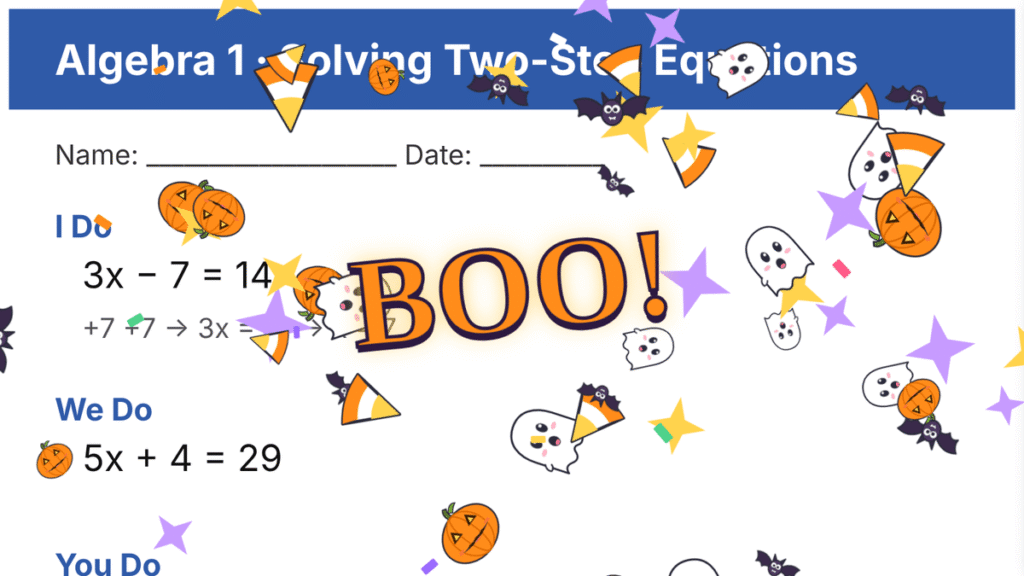
- Halloween Explosion: bats, pumpkins, ghosts and candy corn burst out with a giant BOO!
- Giant Waving Hand: a big green monster hand rises up and waves.
- Peekaboo Face: a fuzzy face peeks in from the edge, hides, and peeks again.
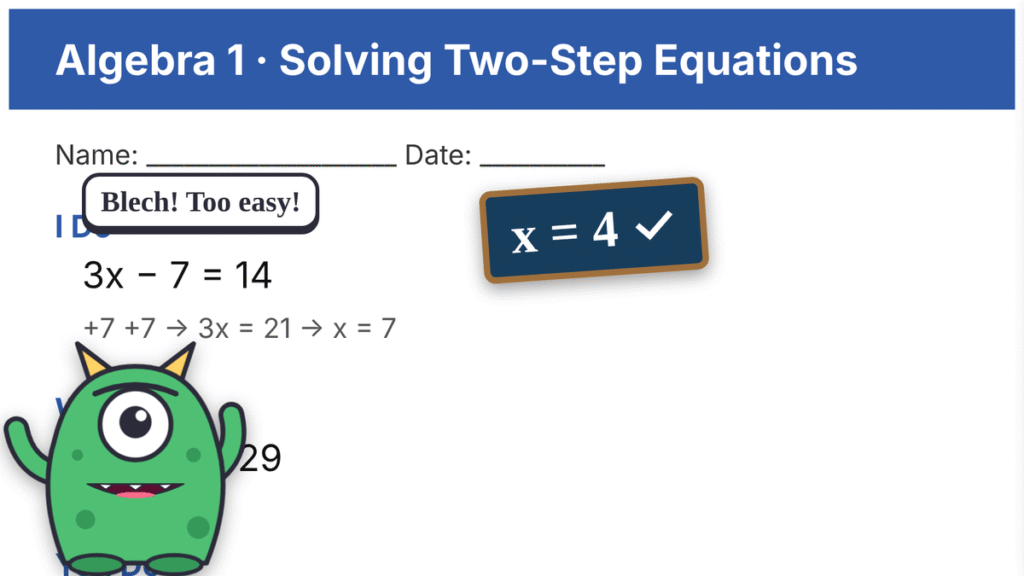
- Equation Muncher: a monster eats the equation 2x + 5 = 13 and spits out the answer, x = 4.
- Spider on the Edge: a tiny spider crawls along the edge of the screen.
- “You Have Homework!” Ghost: a ghost holds up the sign every student dreads.
- “Solve for X… If You Dare!”: a jack-o’-lantern with a math challenge.
- Spooky Classroom Takeover: cobwebs, spiders and ghosts take over the whole board.
- Tiny Ghost Grows Giant: a little ghost wiggles, then grows huge.
- Monster Chases the Chalk: a monster runs after a flying piece of chalk.
- “Your Teacher Is Secretly a Zombie!”: a dripping banner reveals your true identity.
How to use it on your smart board
- Download the free file (button below) and unzip it.
- Double-click halloween-pranks.html. It opens in Chrome or Edge, with no installation needed.
- Open your lesson. Click Open PDF / Image and choose your worksheet or notes. Click Try a sample lesson if you just want to test it.
- Choose a prank. Press C to open the control panel, then click a prank or turn on Surprise mode.
- Hide the controls. Press H for Discreet mode so students see only your lesson.
- Teach, then surprise. Press Space or your clicker to show the prank, and press it again to hide it.
[Image: halloween-prank-control-panel.png]
Tip: If your lesson is in PowerPoint or SMART Notebook, save it as a PDF first (File, then Save As or Export, then PDF). A browser can only show pranks over lessons opened inside the tool.
Use your presentation clicker
Most wireless presentation clickers act like a keyboard, sending keys such as Page Down, the arrow keys or Space. The tool has a built-in clicker test: press a button and it shows exactly which key that button sends. Then click Learn next to an action and press the button you want to use for it.
If your clicker only has Next and Back buttons, choose the 2-button clicker preset: Next shows or hides the prank, and Back picks a different one.
[Image: smart-board-clicker-setup.png]
Keyboard shortcuts
| Key | What it does |
|---|---|
| Space or Enter | Show or hide the prank |
| Right or Left arrow | Next or previous prank |
| 1 to 9, 0 | Jump to prank 1 to 10 |
| Esc | Panic button: hide everything instantly |
| Page Down or Page Up | Scroll your lesson |
| S | Switch between Manual and Surprise mode |
| H | Hide or show all controls |
| C | Open the control panel |
| F | Full screen |
Download the free Halloween Smart Board Prank
Works in Chrome and Edge on Windows, Mac and Chromebook. Your PDF never leaves your computer; nothing is uploaded anywhere.
Frequently asked questions
Does it work with SMART Board, Promethean and other interactive whiteboards?
Yes. It runs in the web browser on the computer connected to your board, so it works with any smart board, interactive whiteboard, TV or projector.
Do I need the internet?
No. Everything, including the PDF reader, is inside the one file, so it works completely offline once downloaded.
Can I use it on top of PowerPoint or Google Slides?
Not directly, because a browser can’t draw over another program. Save or download your slides as a PDF and open the PDF in the tool instead.
Is it too scary for younger students?
The characters are cartoon-style and silly rather than frightening, so they suit middle and high school classes. For younger students, start with the ghost, the waving hand or the dancing skeleton, and keep the sound off.
Will the prank disappear if I hold the clicker button?
No. The prank stays on screen until you press again, and holding a button never triggers it twice.
Happy Halloween, and enjoy the screams of laughter! If you try it in your classroom, tell me in the comments which prank got the biggest reaction.
If you click the links below and make a purchase, we earn a commission at no additional cost to you.