If you teach middle school math, you already know that two-step equations are the moment everything either clicks or falls apart. Students who genuinely understand how to isolate a variable in two steps are ready for everything that follows — multi-step equations, systems, inequalities. Students who skip over this skill without real fluency will feel that gap for the rest of their algebra career.
That is why I keep coming back to practice worksheets for this topic specifically. Not because worksheets are the only tool, but because repeated, varied practice with two-step equations is genuinely what builds the procedural fluency students need. And the key word is varied — the same type of equation done twenty times is not the same as working across all the different forms a two-step equation can take.
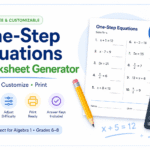
This free Two-Step Equations Worksheet Generator is my solution to that. It takes about two minutes to set up, and you walk away with a print-ready PDF that looks professional and actually covers the skills your students need.
Two-Step Equations Generator
Design · Customize · Download
What Makes This Generator Different
Most equation worksheet generators online give you one flavor of problem — usually just ax + b = c with positive whole numbers — and call it done. That is fine for the first day of a unit, but it is nowhere near enough for thorough practice or review.
This generator covers twelve distinct types of two-step equations. Fraction coefficients are rendered as proper stacked fractions — not the awkward slash notation like (2/3)x — both in the on-screen preview and in the downloaded PDF. Division equations like x/4 - 1 = 5 are typeset with x over 4 exactly the way your textbook writes it. And every problem is mathematically verified to have a clean, whole-number solution (except the decimal type), so you never hand students a worksheet with messy answers.
How to Generate Your Worksheet — Step by Step
Step 1 — Set Your Title and Style
Type the title you want on the worksheet. Something like "Two-Step Equations Practice," "Unit 5 Review," or "Homework 3.2" all work perfectly. Pick a title color and font if you want to match your classroom theme or subject materials. You can also choose which variable to use — x is the default, but switching to n or y is a great way to keep students from assuming the answer is always "x."
Toggle the Answer Key to Yes if you want solutions printed on the worksheet — perfect for self-checking station activities or substitute lessons. Leave it off for homework assignments or assessments.
Step 2 — Choose Your Question Types
This is where the real power is. Check the boxes next to the equation types you want. You can pick one type for focused practice, or mix several for a comprehensive review set.
The twelve types available are ax + b = c, ax - b = c, x/a + b = c (stacked fraction), x/a - b = c (stacked fraction), negative coefficient with addition, negative coefficient with subtraction, fraction coefficient (p/q)x + b = c, fraction coefficient (p/q)x - b = c, variable on the right side, equations with a negative solution, distribution a(x + b) = c, and equations with decimal values.
Use Select All for a full mixed review. Use Select None and then check just one or two types when you need targeted practice on a specific skill.
A few combinations I use regularly in my own classes:
For a first introduction to two-step equations, I select only ax + b = c and ax - b = c with the min set to 1 and max to 10. Clean numbers, one format, columns set to 2, spacing at 80. Students get the procedure down without juggling extra complexity.
For a mid-unit practice set, I add the division types (x/a + b and x/a - b) and the variable-on-right type. This forces students to think about the equation structure rather than running on autopilot.
For a unit review or test prep, I click Select All, set the count to 20 questions, and use 2 columns. Students see every form they will encounter on the assessment.
For a challenge or enrichment set, I select the distribution type, the fraction coefficient types, and the negative solution type. These are the problems that sort out students who have genuinely internalized inverse operations from those who have only memorized a procedure.
Step 3 — Set Your Question Settings
Set the number of questions. For a homework assignment, 12 to 16 is the right range. For a full review worksheet, 20 to 24 works well. For a quick warm-up or exit ticket, set it to 6 or 8.
Min Number and Max Number control the size of the values used in the equations. Early in the unit, keep these small — something like 2 to 10 keeps the arithmetic from getting in the way of the algebra. Later in the unit or for review, open it up to 2 to 20 or higher to create more demanding problems.
Columns lets you choose 1, 2, or 3. One column gives maximum white space — great for students who need room to show multiple steps. Two columns is my default for most assignments. Three columns fits a lot of problems on one page, which is useful for drill sets or mixed reviews.
Row Spacing controls the gap between questions. Increase it if you want students to work directly on the worksheet. At 80 or higher, there is enough room for students to write the two algebraic steps between each problem.
Step 4 — Choose Your Page Layout
Portrait orientation is standard for most worksheets. Landscape works well for two- or three-column sets when you want more horizontal space per problem.
Question Font Size — Size 14 is the default and works for most students. Size 16 or 18 is helpful for students who benefit from larger print or for projecting the worksheet on a screen during class.
The Work Space option adds a dotted box below each question. Small Box gives just enough room for the two steps. Large Box provides a full working area, which I use when I want students to write every step in a structured format — it doubles as a formative tool because you can see exactly where their thinking went wrong.
Step 5 — Preview and Download
Click Preview Worksheet to see your worksheet exactly as it will print before downloading anything. Check that the fractions look right, the spacing is comfortable, and the title reads the way you want.
When you are satisfied, click Download PDF. Your worksheet downloads immediately — no account, no email, no waiting. The PDF includes the Name and Date line, your title, the instruction line, all equations with proper fraction notation, and the richineducation.com footer. If you turned on the Answer Key, solutions appear right-aligned beside each problem in green.
When This Worksheet Is Most Useful
Day one of two-step equations. Generate a clean set of ax + b = c problems only. Students practice the procedure in its simplest form before variations are introduced.
After teaching each new equation type. Generate a focused set with just the new type mixed with types students already know. This is how you build cumulative fluency rather than isolated skills.
Before a quiz or test. Click Select All, generate 20 mixed problems, turn off the answer key, and you have a review worksheet in under two minutes.
Differentiation. Generate two versions — one with simple whole-number coefficients and basic types for students still building fluency, and one with fraction coefficients, distribution, and larger numbers for students who are ready to be pushed. Both groups are working on the same essential skill, just at the appropriate level.
Sub plans. A worksheet with clear instructions, a workspace, and an answer key is genuinely self-contained. Students know what to do, and whoever is covering your class does not need to know algebra to manage it.
These worksheets are free to use, print, and distribute for educational purposes. However, this tool and its generated materials may not be used for commercial purposes.
Explore More Free Math Tools on Rich in Education
- One-Step Equations Worksheet Generator — same format, perfect for the unit before this one
- Adding and Subtracting Integers Worksheet Generator — for the integer operations foundation
All tools on this site are free, require no account, and are built to save math teachers real planning time.